Switching Profiles on Blume
How do I switch profiles in the profile section to view only the information of the selected profile?
Blume allows users to manage multiple family member profiles under a single primary account, ensuring convenient access and control of health information across the household.
Overview
Each Blume account includes one Primary Account Holder — the person whose email address was used during registration. The primary account holder can add Secondary Profiles for family members such as a spouse, children, or dependents.
All profiles are linked under the same account, allowing users to switch seamlessly between profiles while keeping each member’s information distinct and organized.
Email Management Note:
All email addresses associated with a profile in OmegaAI automatically sync to Blume and will appear under that profile. The primary email is always marked with a check icon and cannot be edited, while secondary emails can be added or removed as needed.
How Switching Profiles Works
When you switch profiles in Blume, the application automatically refreshes to display information specific to the selected family member. The following details update accordingly:
- Personal details (e.g., name, date of birth, gender)
- Contact information (e.g., phone number, email address)
- Home address
- Emergency contact details
This ensures that every family member’s data is managed independently, even within the same Blume account.
Steps to Switch Profiles (Desktop & Mobile)
- Go to the Patient Page and open the Profile section.
- At the top of the page, you will see the primary account holder’s name and email address.
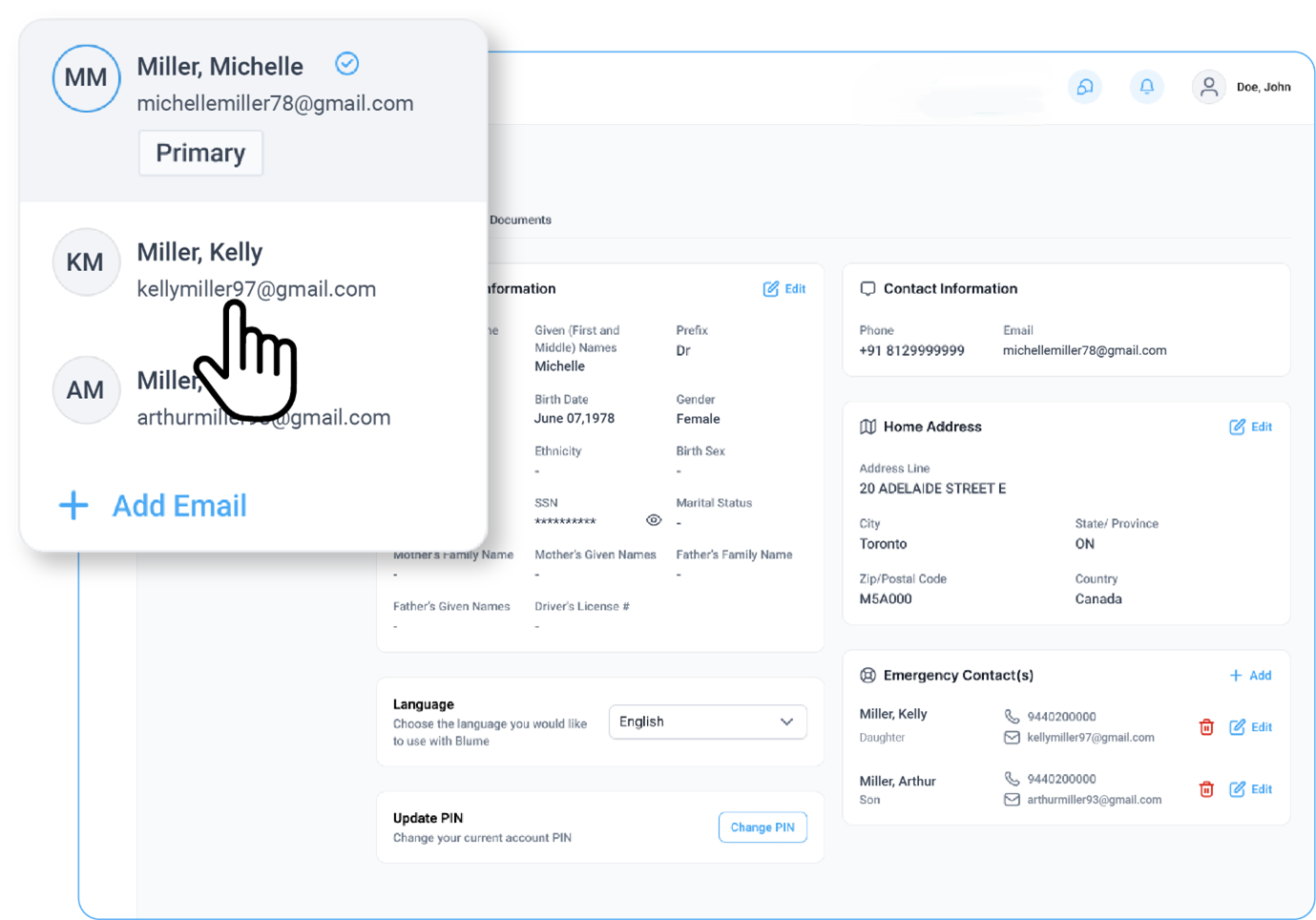
- Click the drop-down arrow next to the email address.
- From the list, select the desired family member profile.
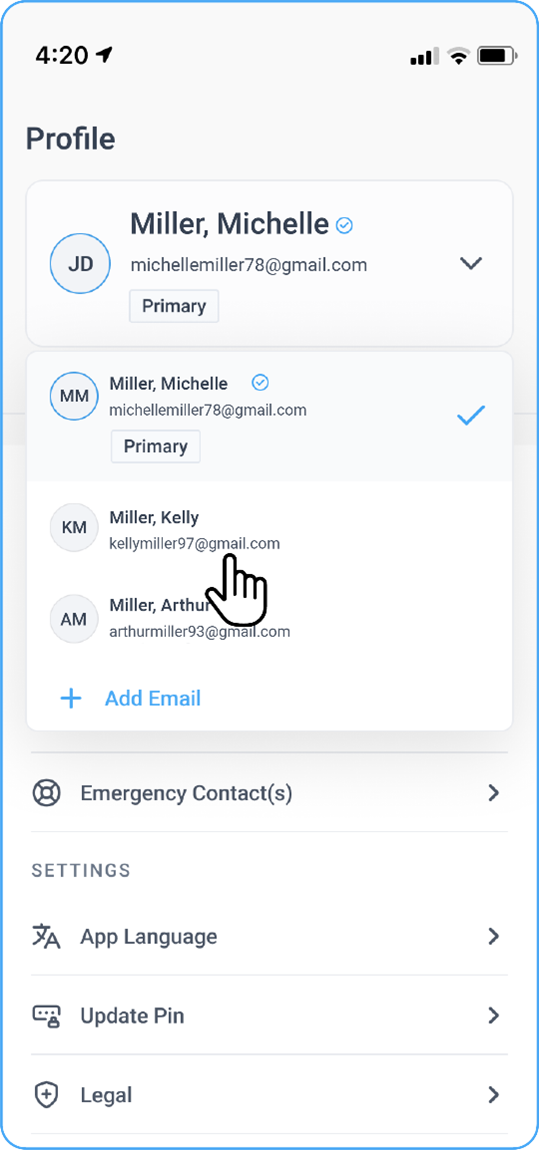
-
The page will automatically refresh, displaying only that profile’s personal, contact, address, and emergency contact information.
-
To connect an additional email address, click the Add Email button (refer to the Connect Email Flow for details).
-
The primary email for the selected profile will always display a check icon.
-
Only one email can be primary, and this email cannot be edited.
-
Secondary emails can be added or removed, and updates remain synced with OmegaAI
Notes
- Only the Primary Account Holder can add or remove family member profiles.
- Switching profiles does not affect your login status — you remain logged in to the same Blume account.
- Each profile maintains its own details to ensure accuracy, privacy, and clarity across all users.
- Email details stay consistent between Blume and OmegaAI, with the primary email clearly identifiable via the check icon.